1. Access the Article Categories Page1. Akses Halaman Kategori Artikel
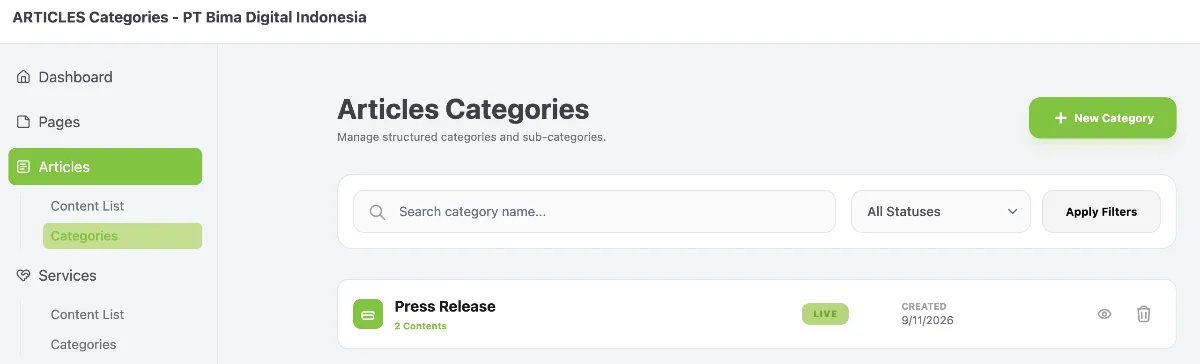
Access the Article Categories menu by following these steps:
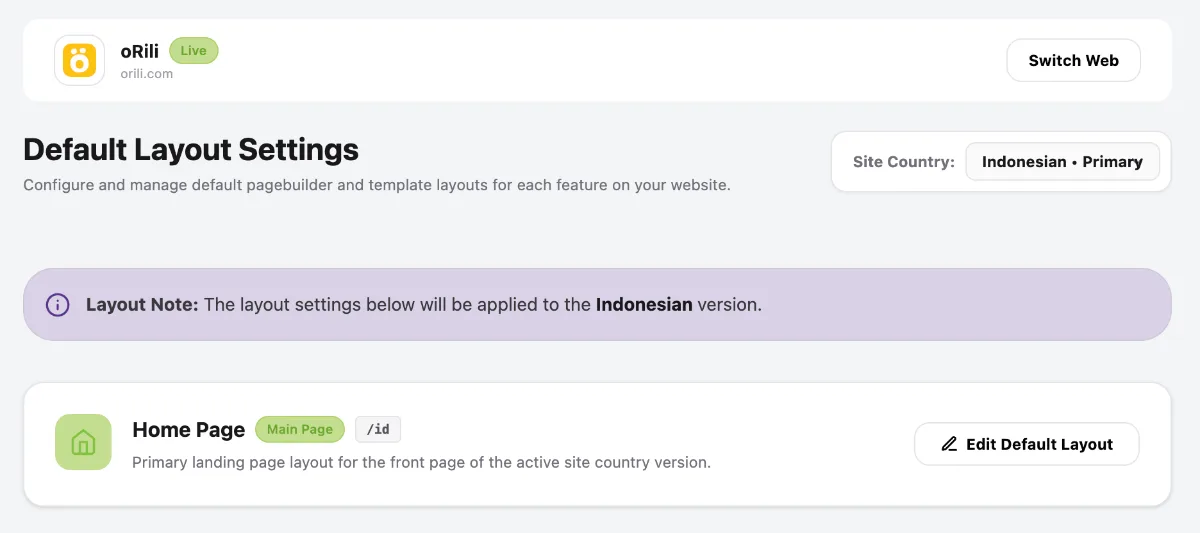
- Go to the Dashboard.
- Click the Operational Tools menu.
- Select Website.
- Select your website.
- Click Manage.
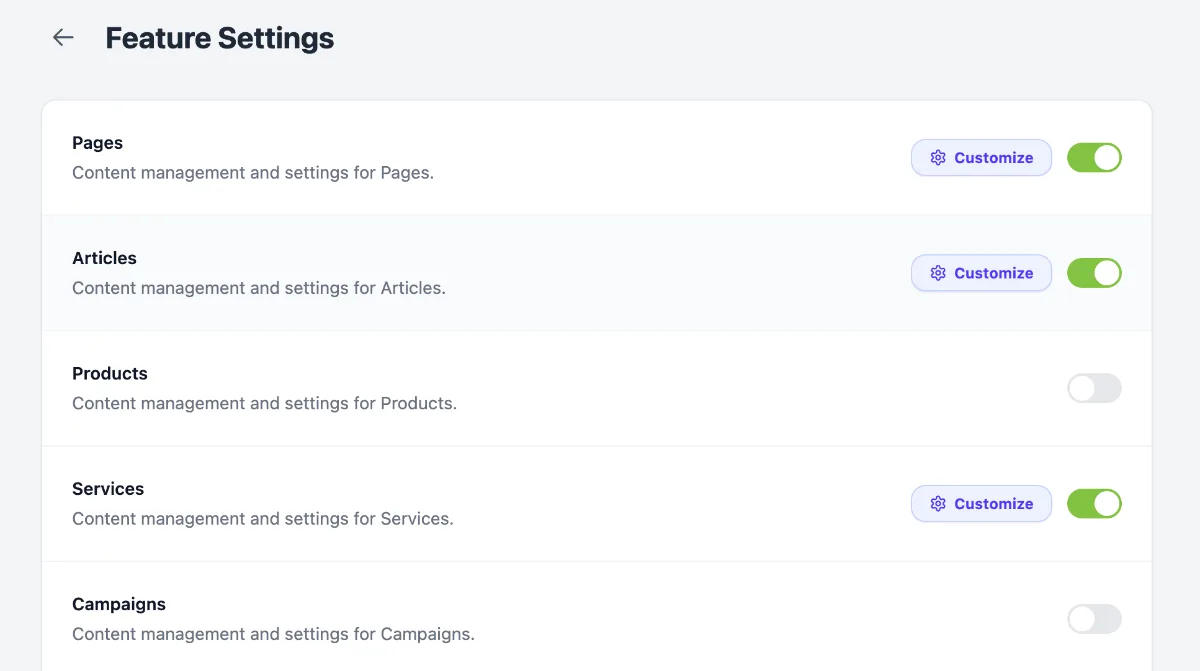
- Select Articles.
- Select Categories.
2. Create a New Article Category
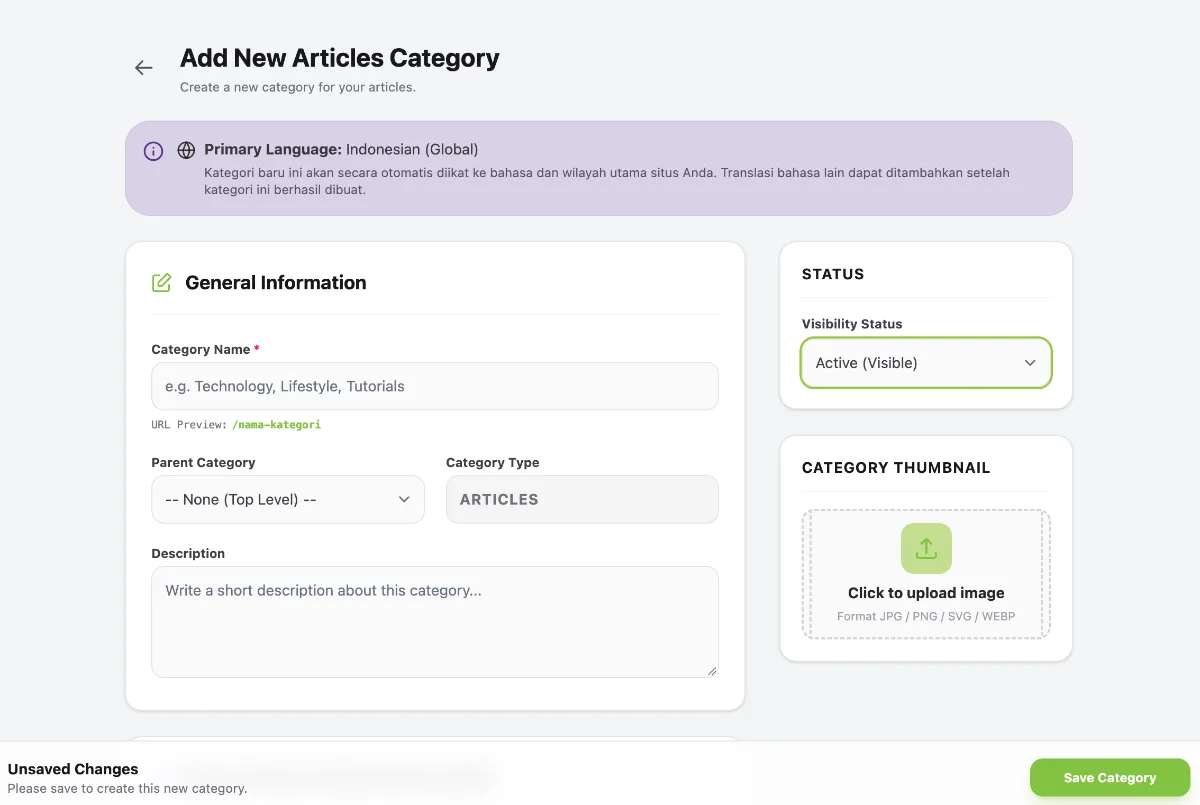
Once you are on the Article Categories page, click the New Category button.Enter the category name as required, then click Save Category.Setelah berada di halaman kategori artikel tadi, selanjutnya bisa klik tombol "New Category" , silahkan isi nama kategori sesuai keperluan kemudian klik tombol "Save Category".
3. Create a New Article
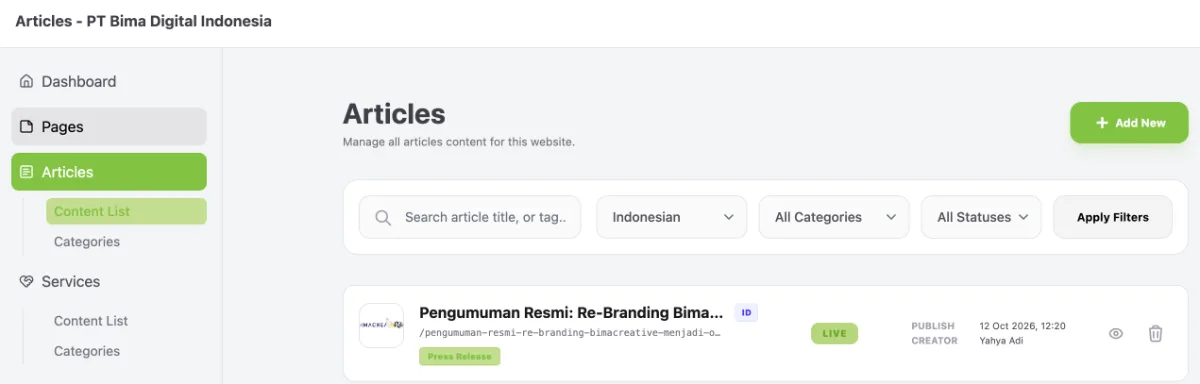
- Go to Articles → Content List in the left-hand sidebar.
- Click the Add New button in the top-right corner. You will then be taken to the article creation form, as shown below.
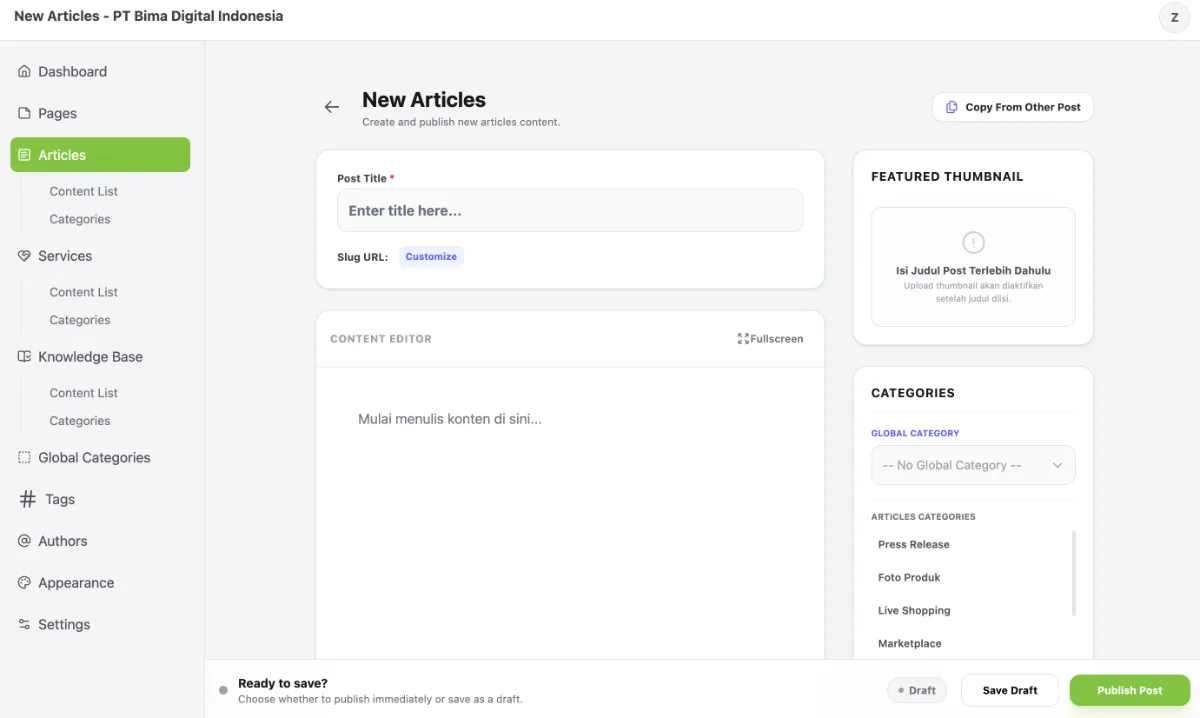
The following article details need to be completed:
- Post Title
- Featured Thumbnail
- Categories
- Authors
- Article Content – Click the + icon to add content elements such as text, headings, quotes, videos, images and more.
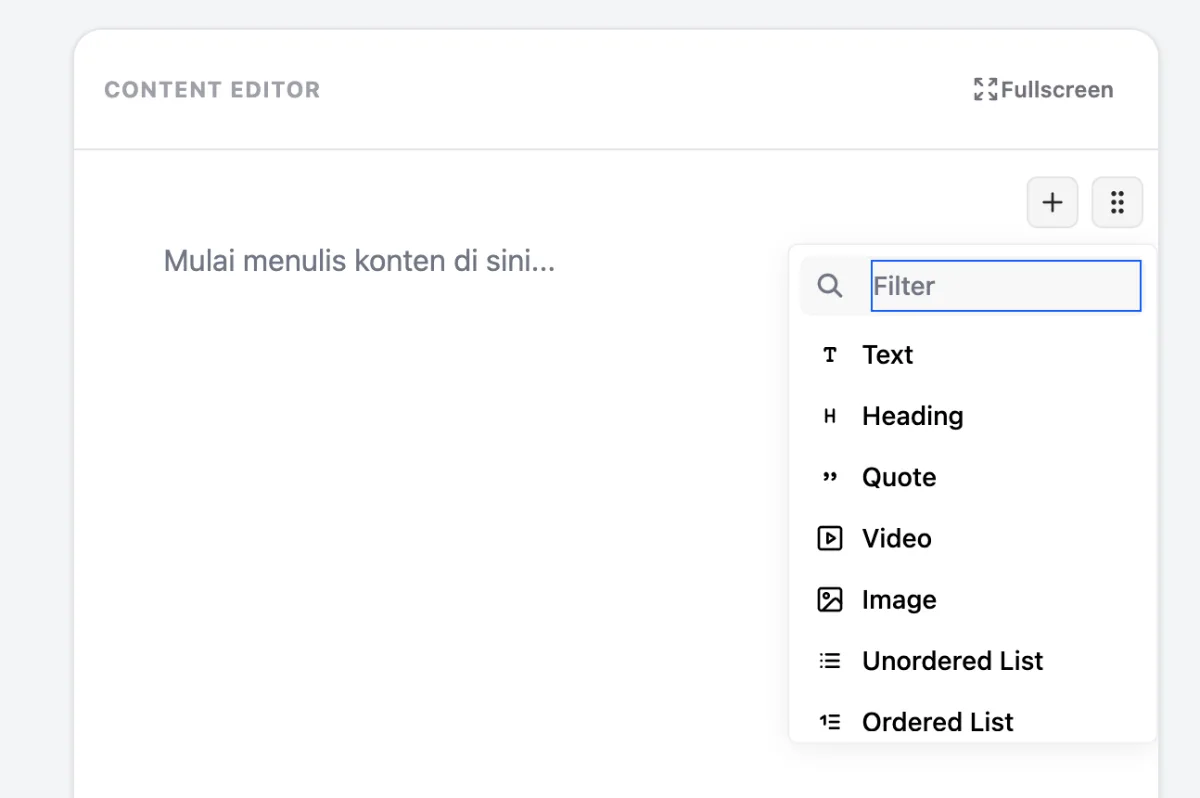
4. Submit the Article
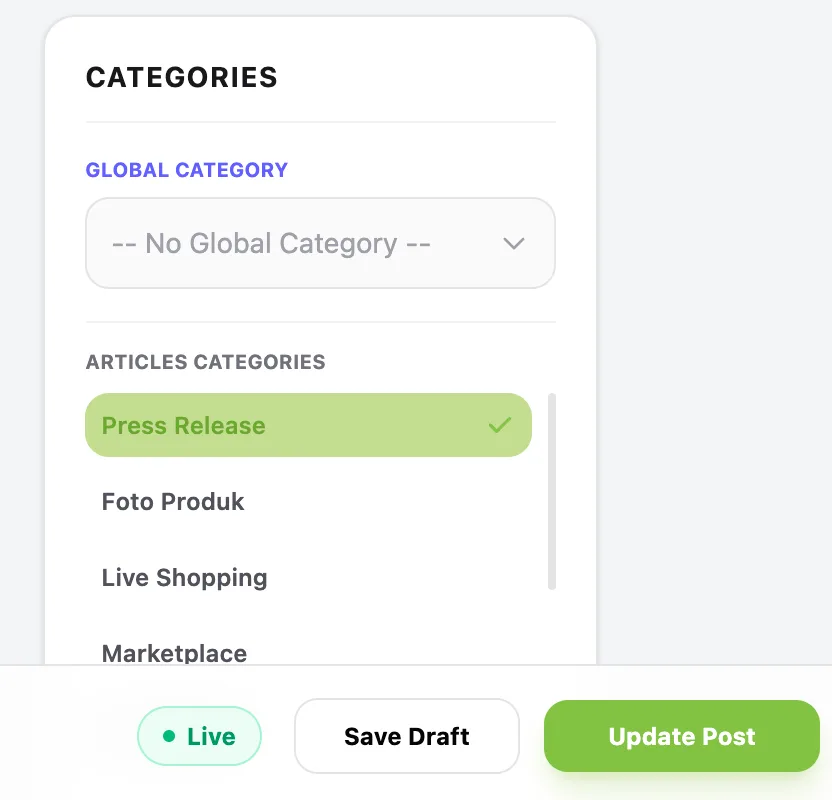
Once you have added all the article content, click Update Post to automatically publish the article.
5. View the Published Article
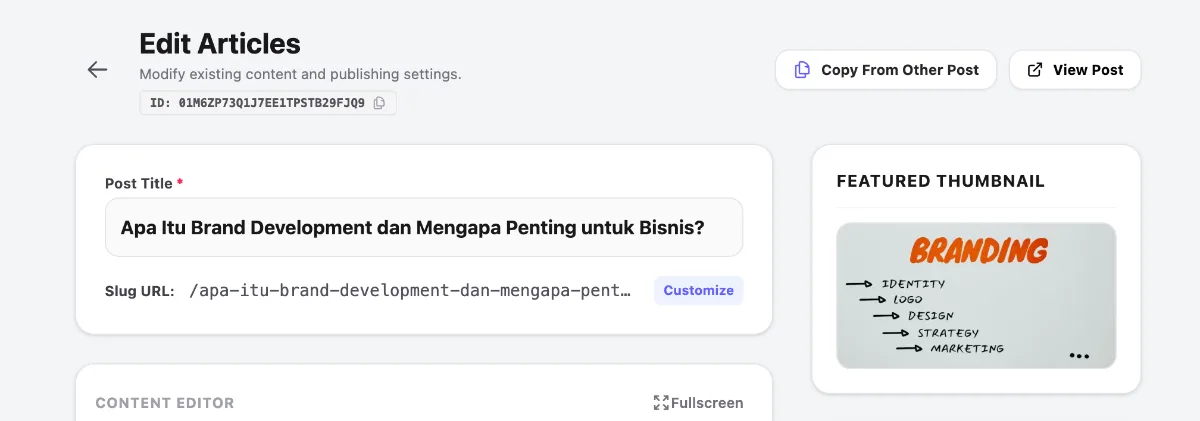
Once the article has been published, click the View Post button in the top-right corner to view the published article.