1. Register for an oRili Workspace Account
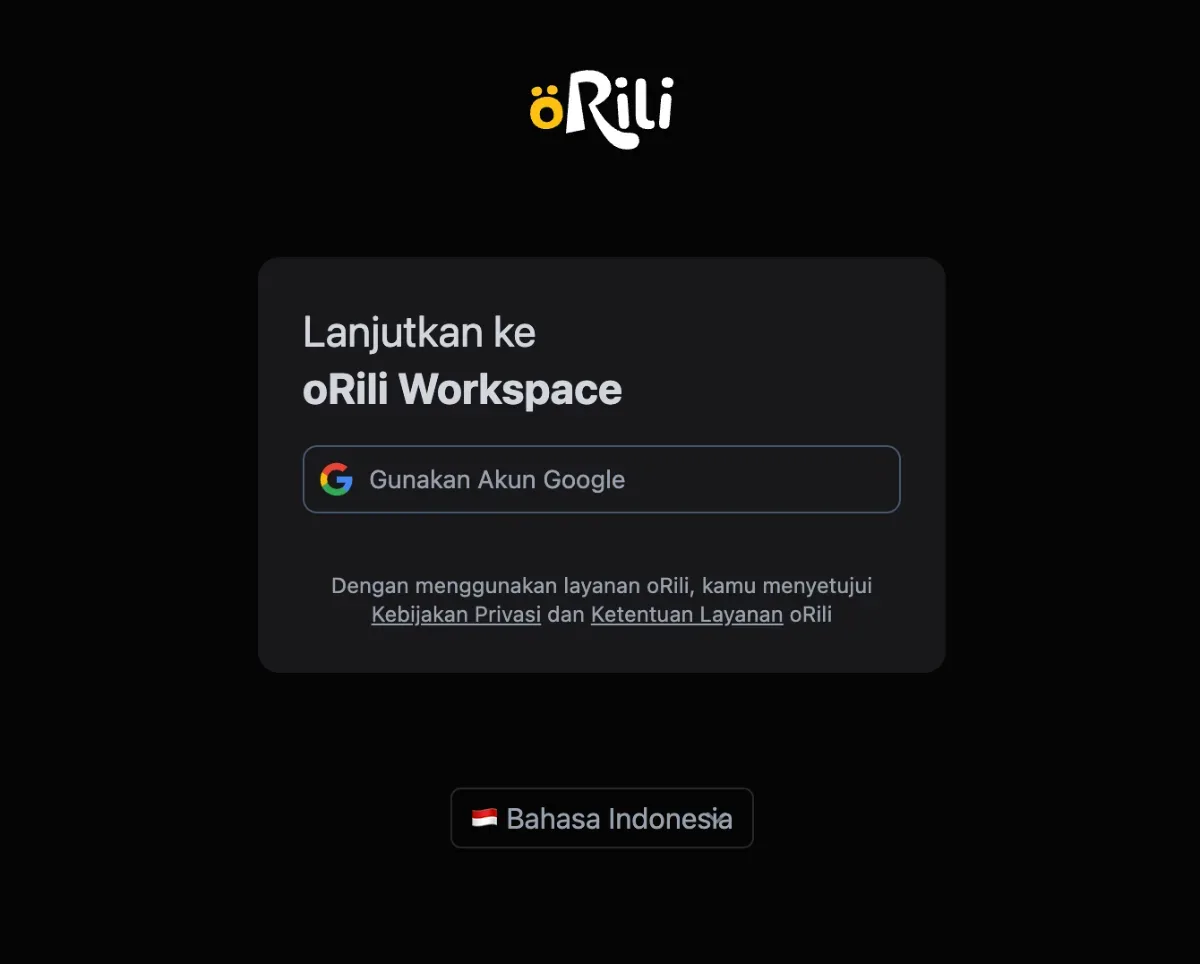
Access the oRili Workspace platform via https://workspace.orili.com/, then register using your Google account.
2. Confirm Account Creation
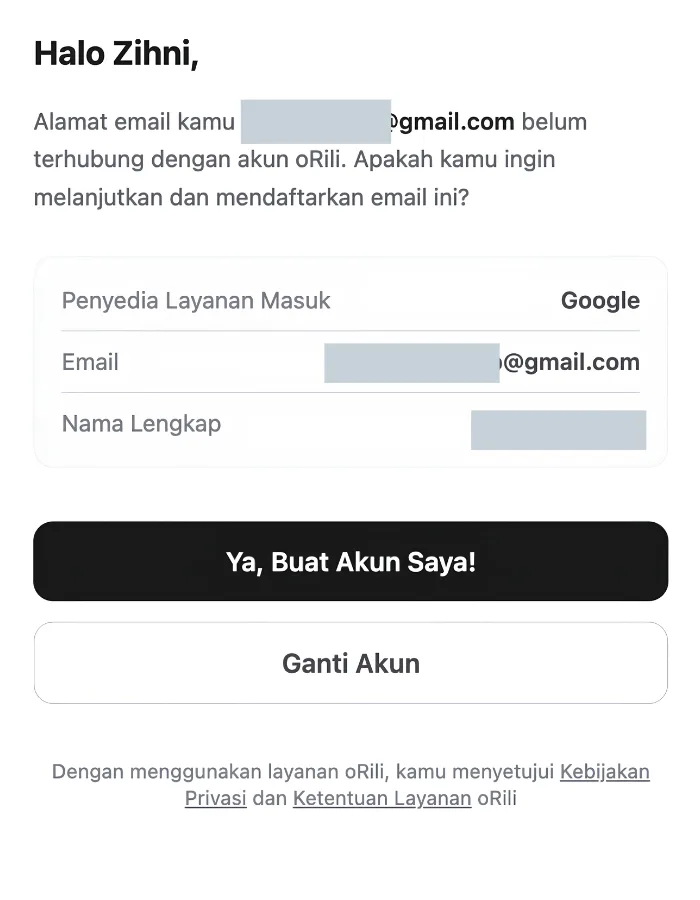
3. Create a New Workspace Account
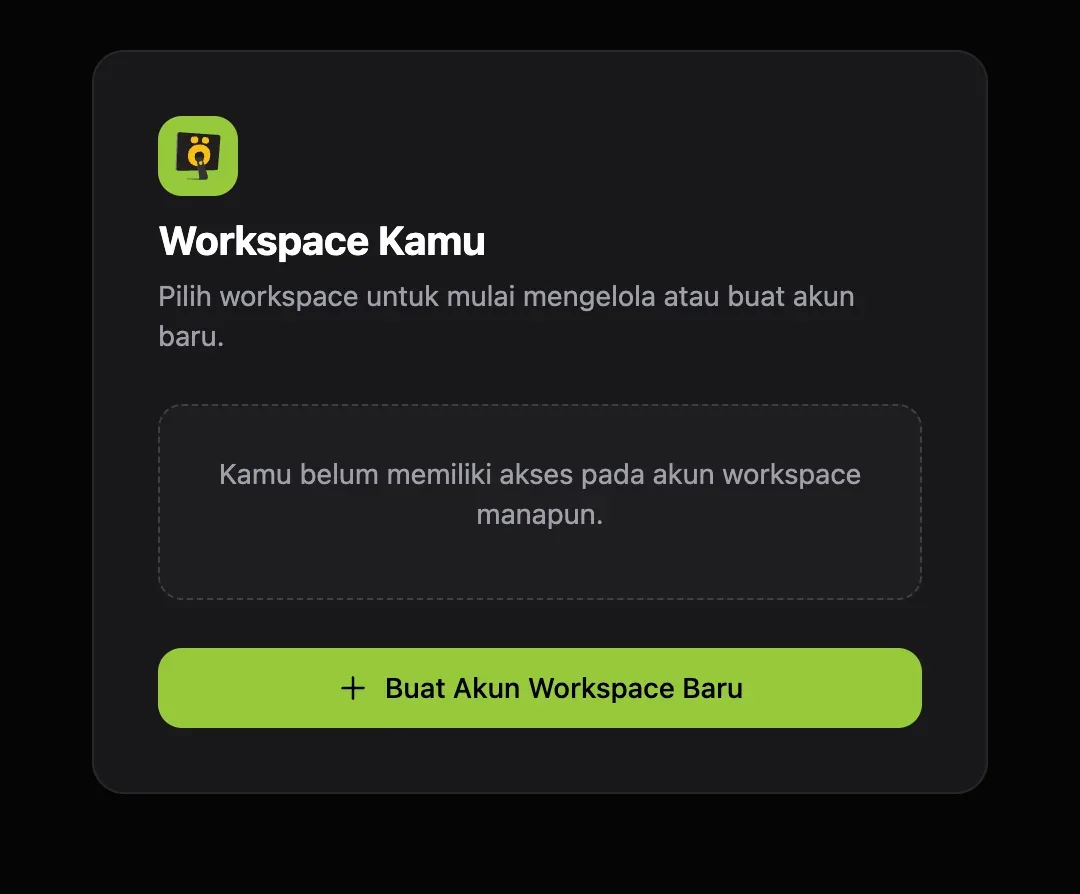
Click Create New Workspace Account. You will then be prompted to confirm your phone number and recovery email address, as outlined in the steps below.
4. Click Complete Phone Number
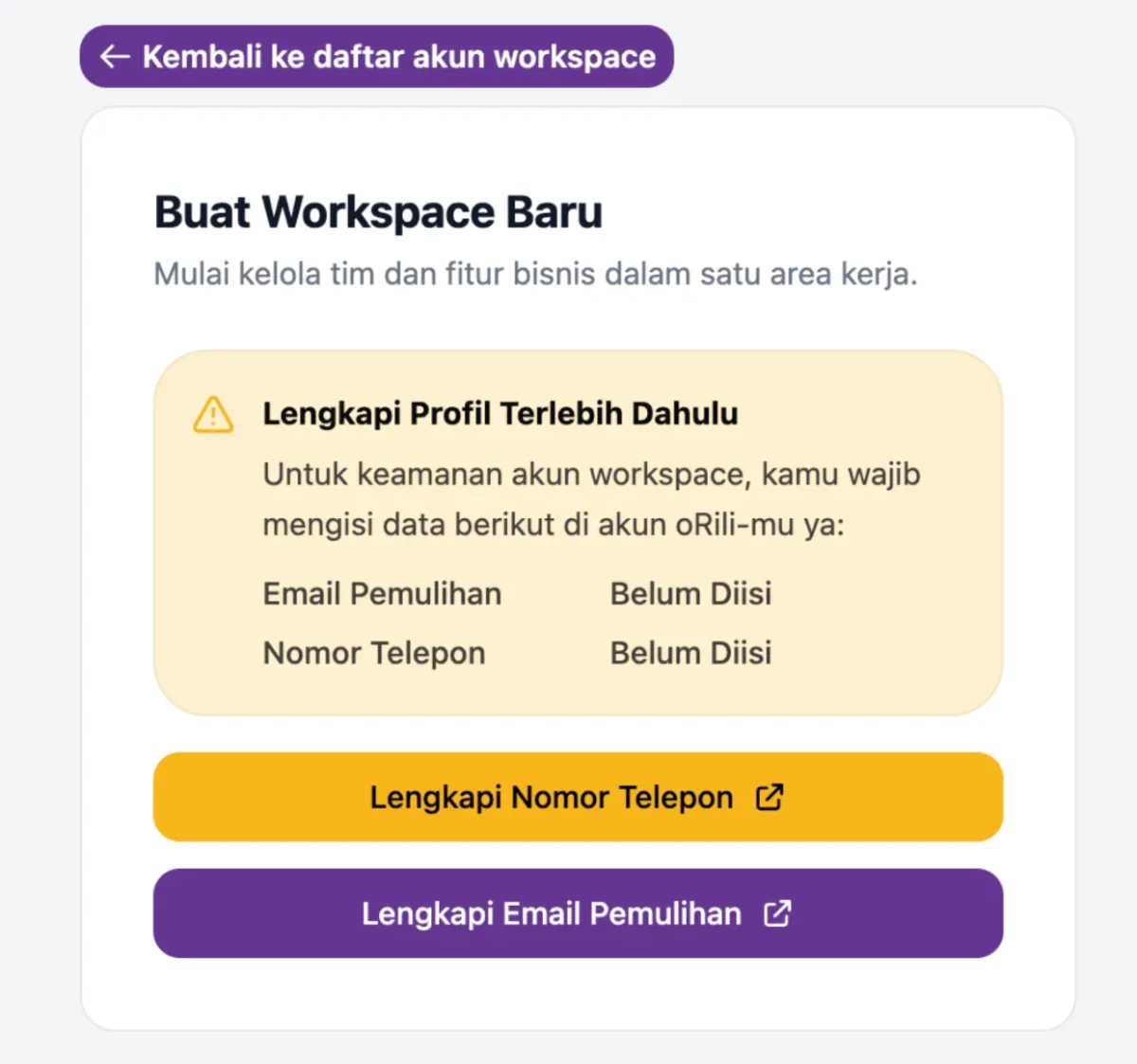
5. Complete Your Account Details
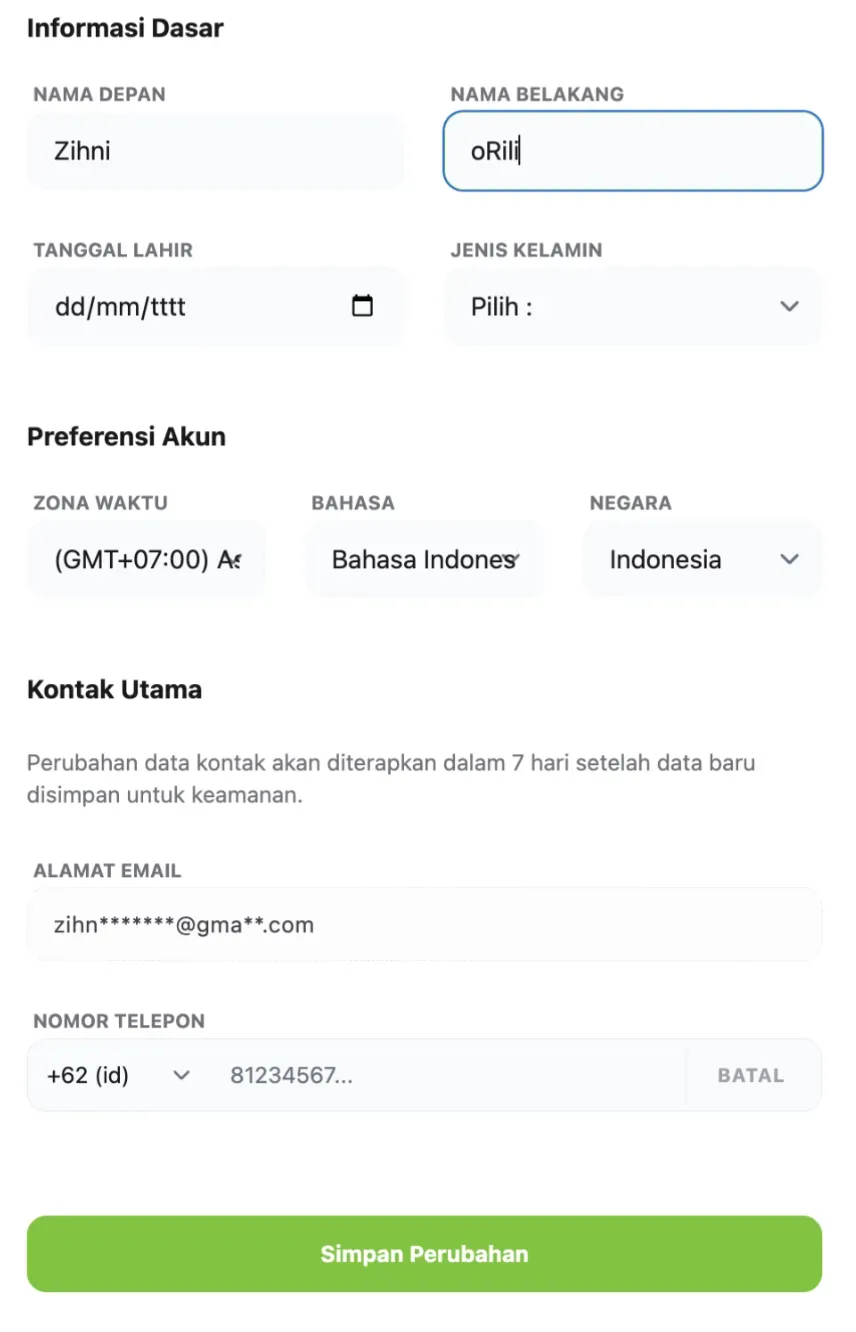
Fill in all the required details, including your phone number, then click Save Changes.
6. Verify Your Phone Number Change
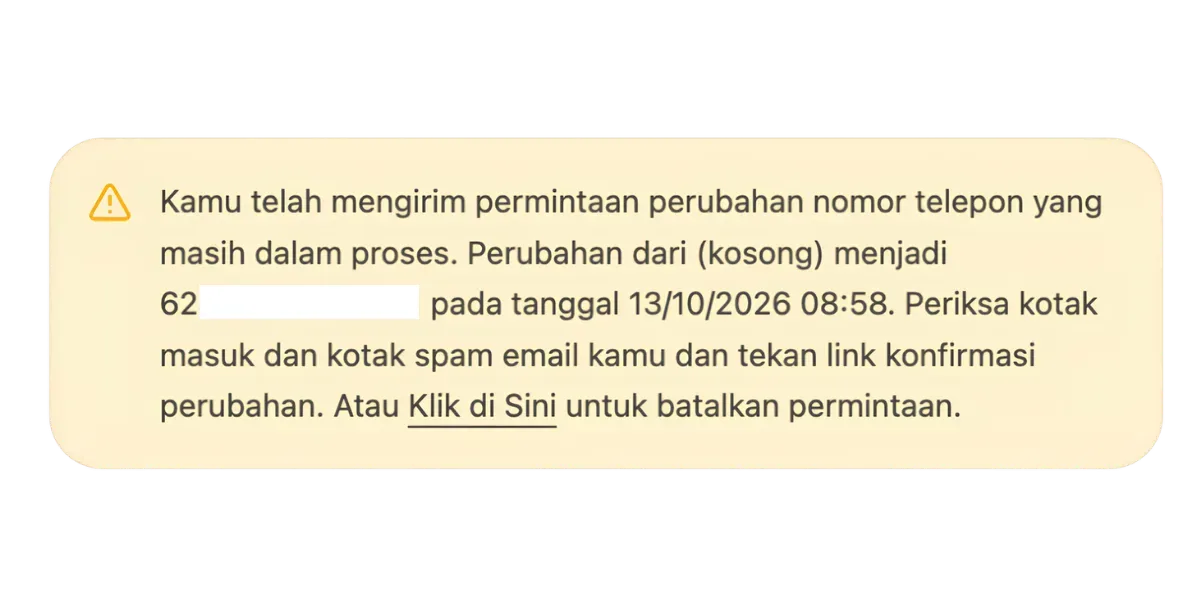
Check your email and click the verification link to confirm the phone number change.
7. Confirm the Phone Number Change
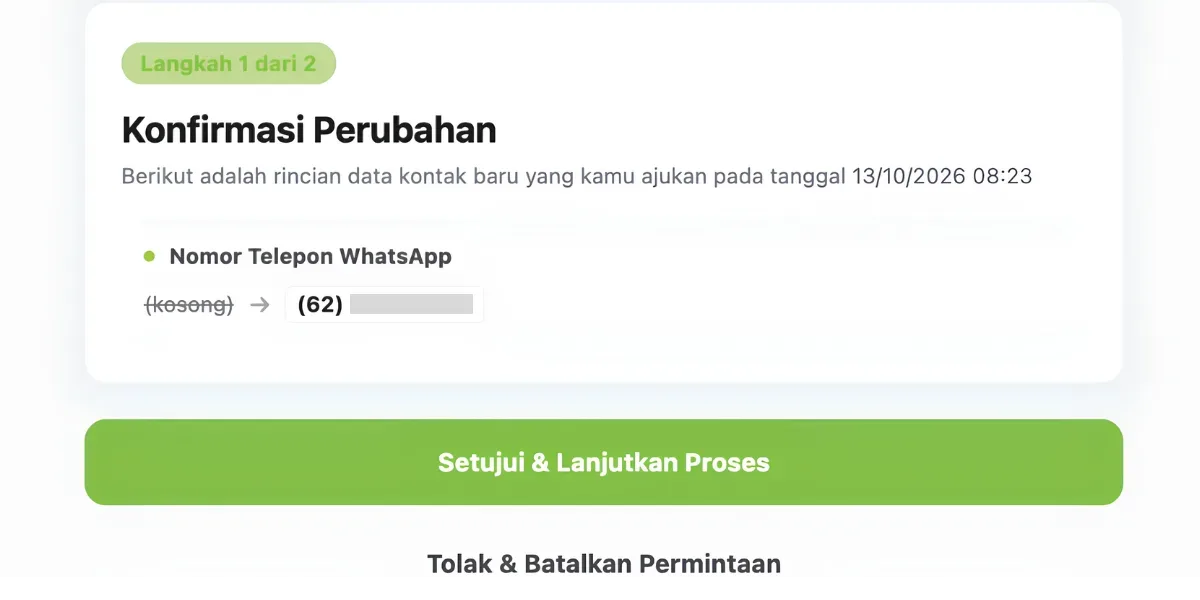
Click Agree and continue with the process.
8. Confirm OTP Delivery
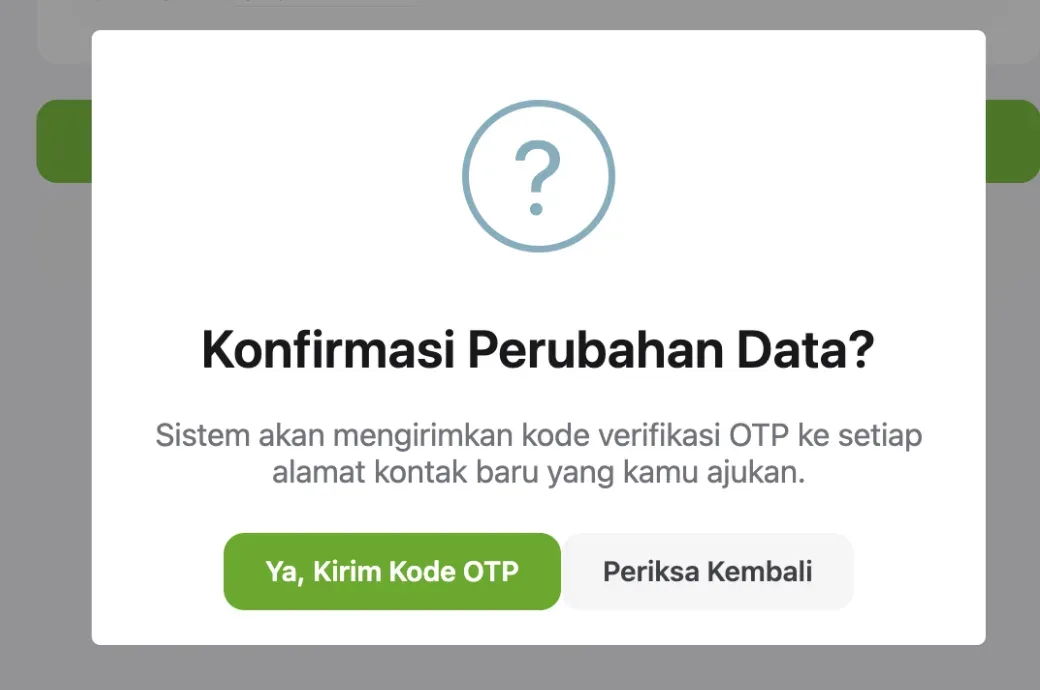
9. Enter the OTP Code
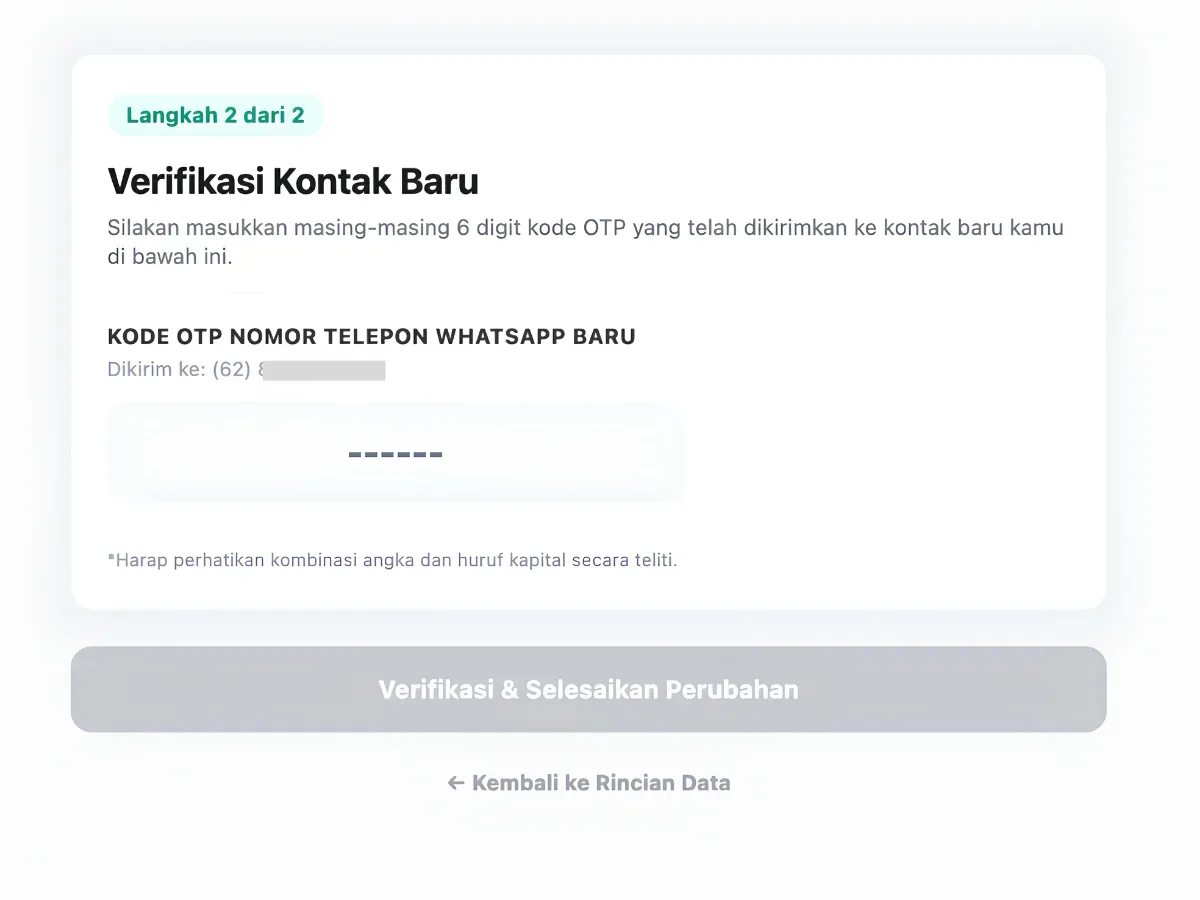
Enter the OTP code sent to the registered phone number.
10. Recovery Email
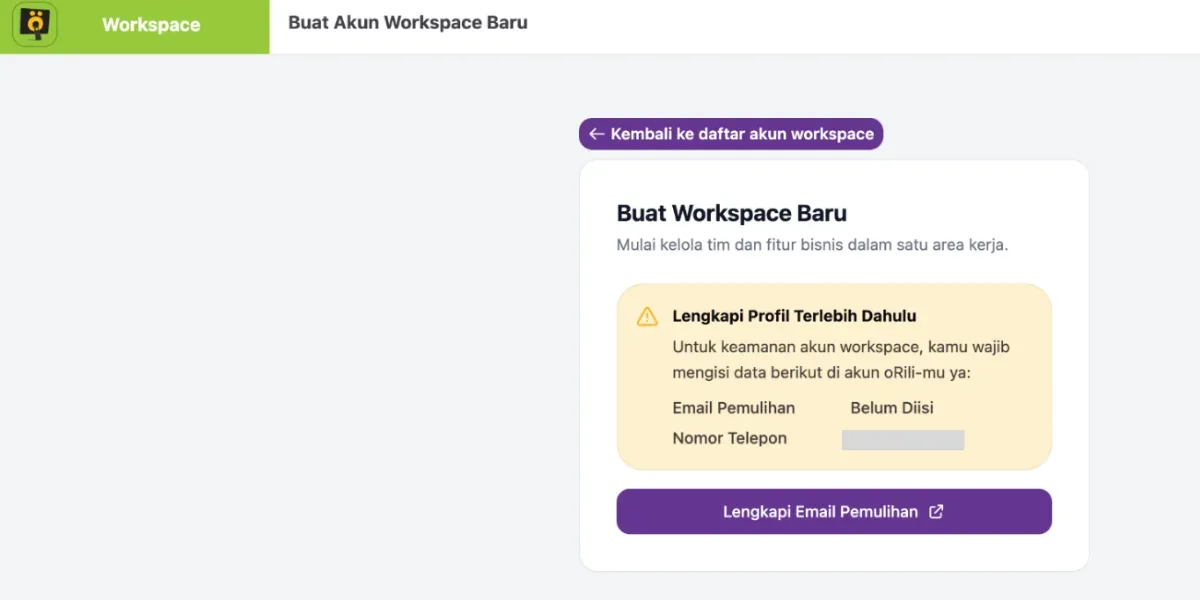
The next step is to add a recovery email address. Click Complete Recovery Email.
11. Enter Your Recovery Email Address
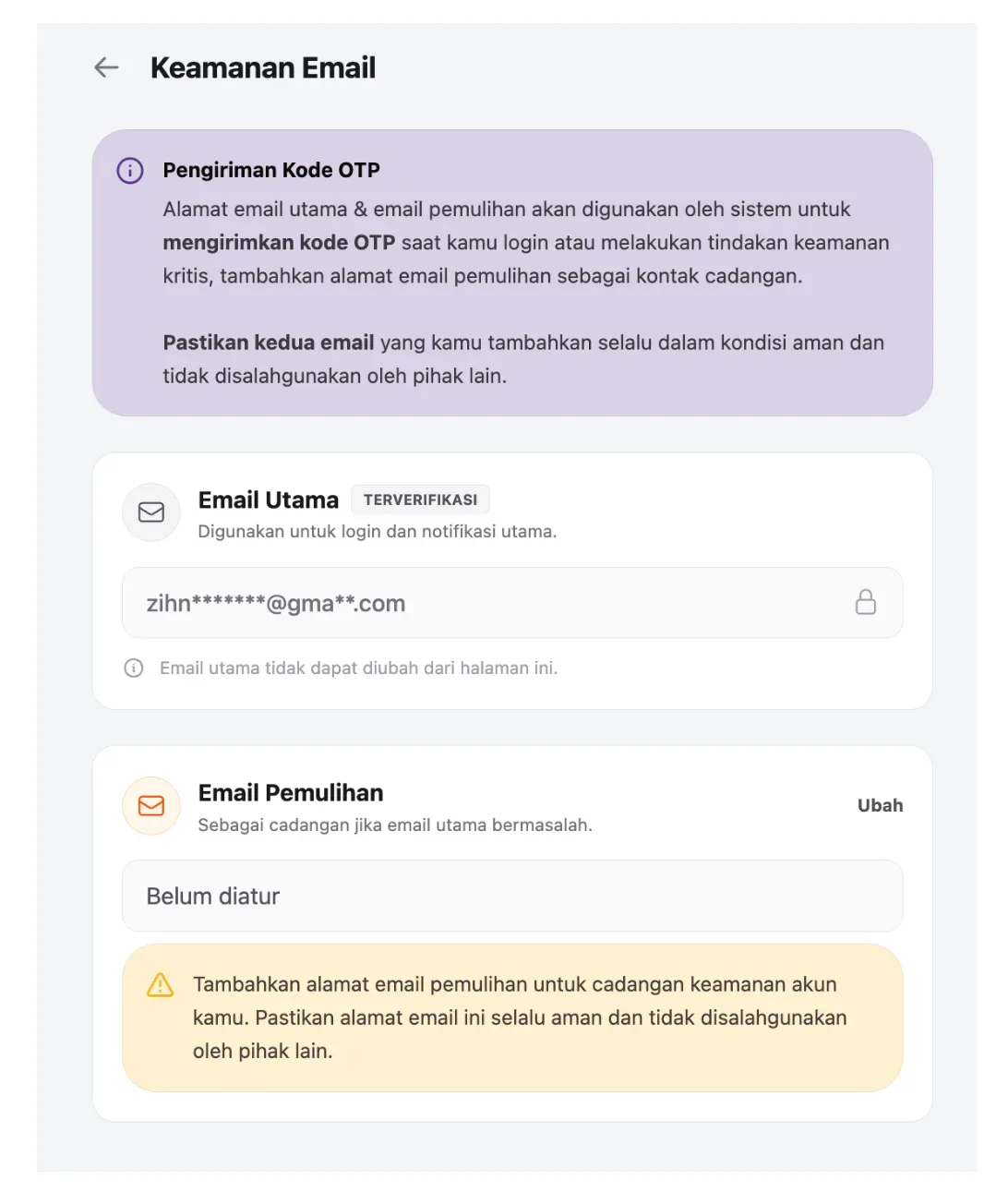
Enter the email address you want to use as your recovery email.
12. Verify Your Recovery Email Address
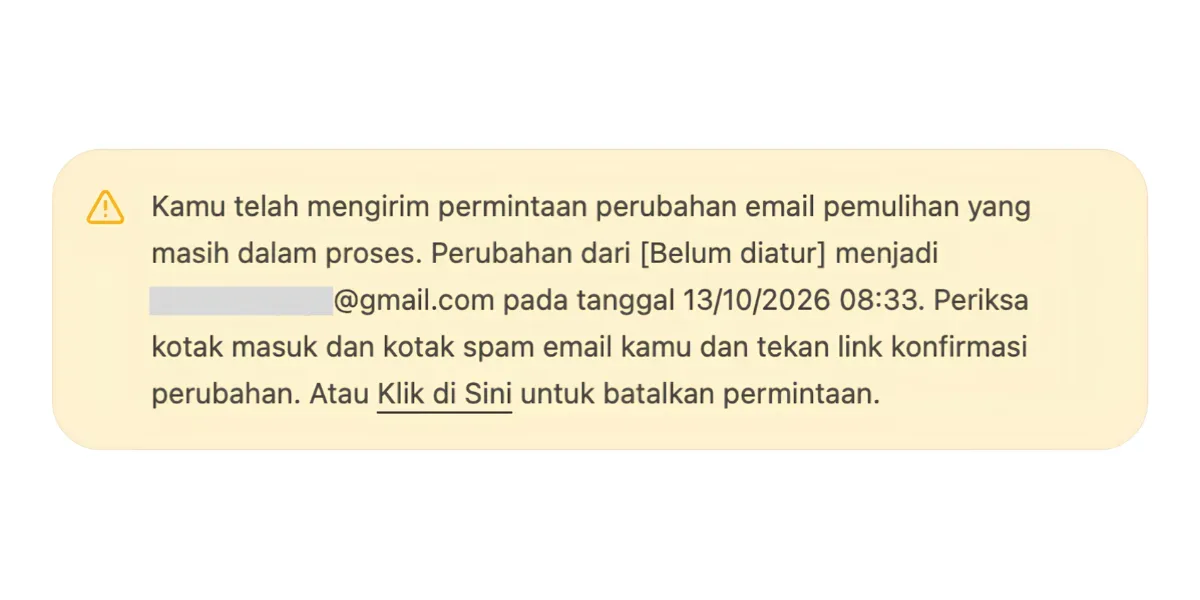
Check your email and click the verification link to confirm your recovery email address.
13. Enter the OTP Code
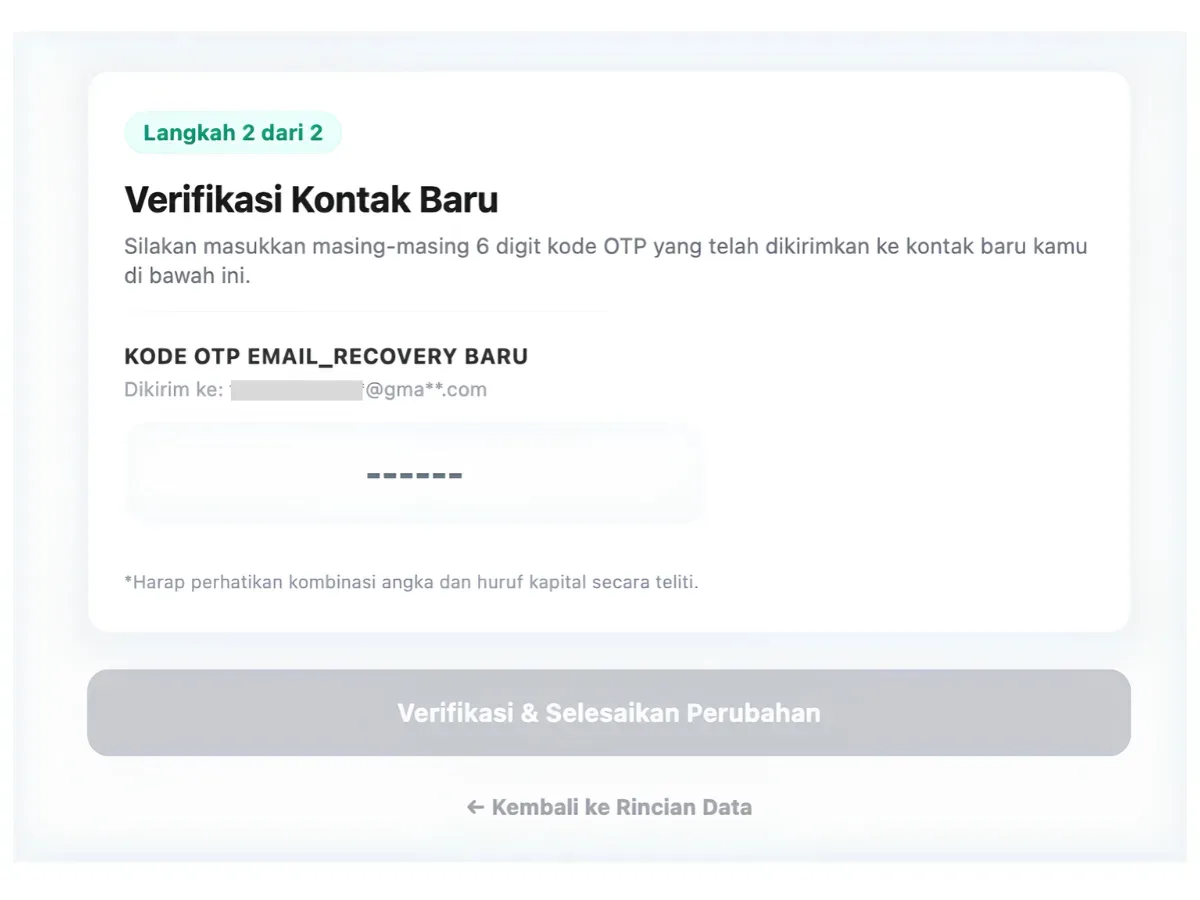
Enter the OTP code sent to the inbox of the email address you are using for recovery, then click Verify & Complete Changes.
14. Complete the Workspace Account Details Form
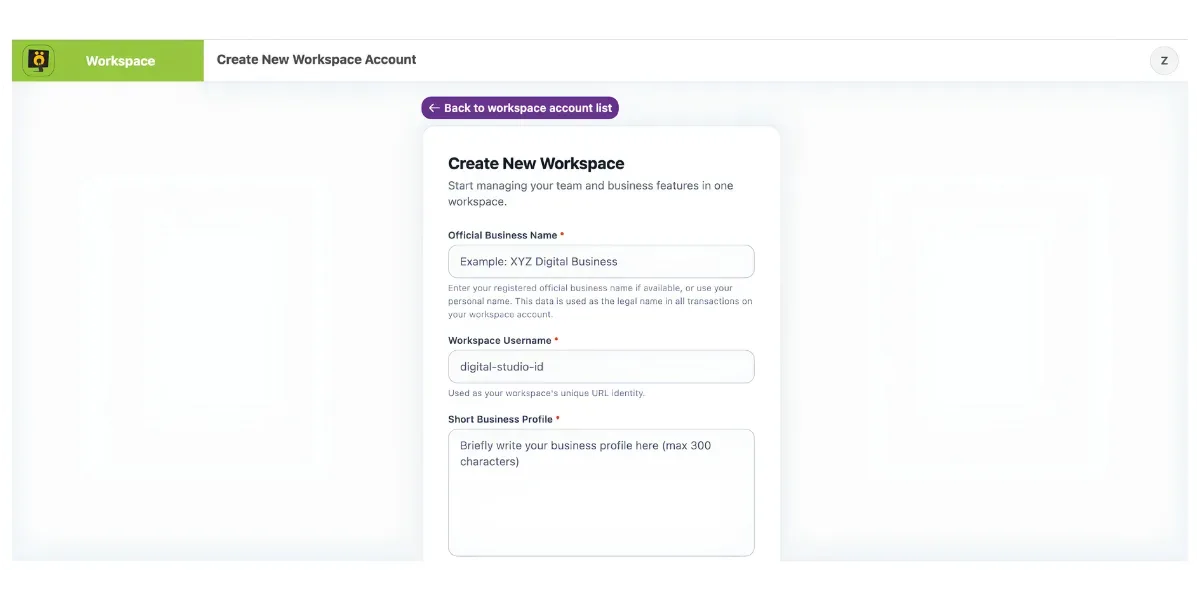
You will then be directed to the Workspace account creation form. Fill it in with the required account details.
15. Submit the Form
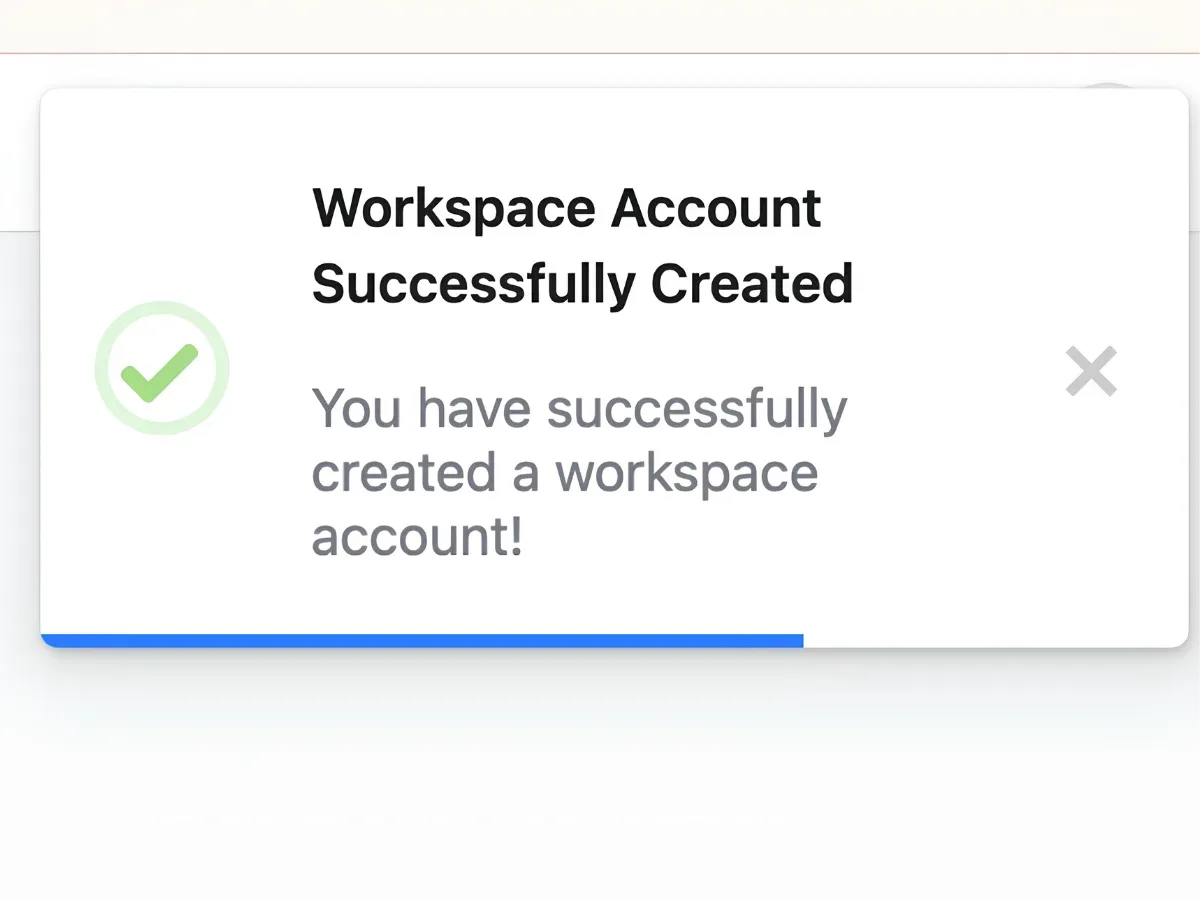
After submitting the completed Workspace account form, a pop-up will appear if the process is successful, as shown in the image.
16. Workspace Account Dashboard
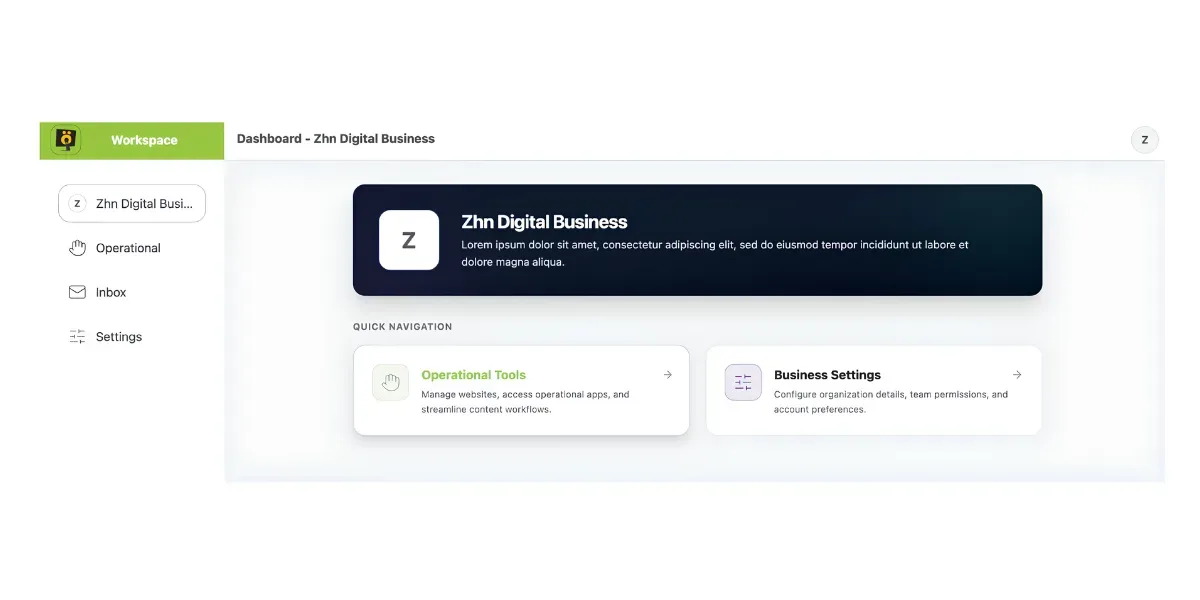
Once your Workspace account has been successfully created, the oRili Workspace dashboard will be displayed, ready for you to use.