1. Access the Content List
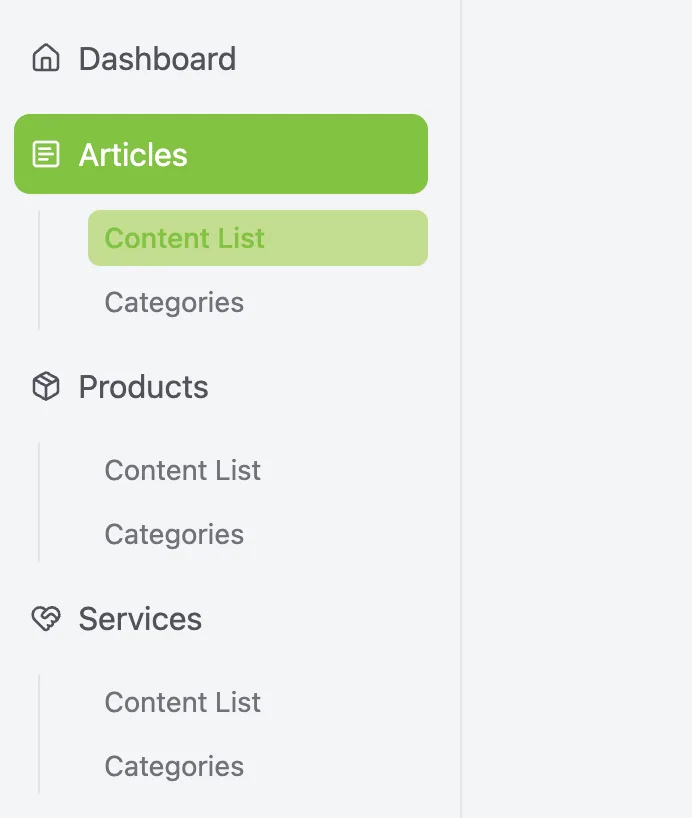
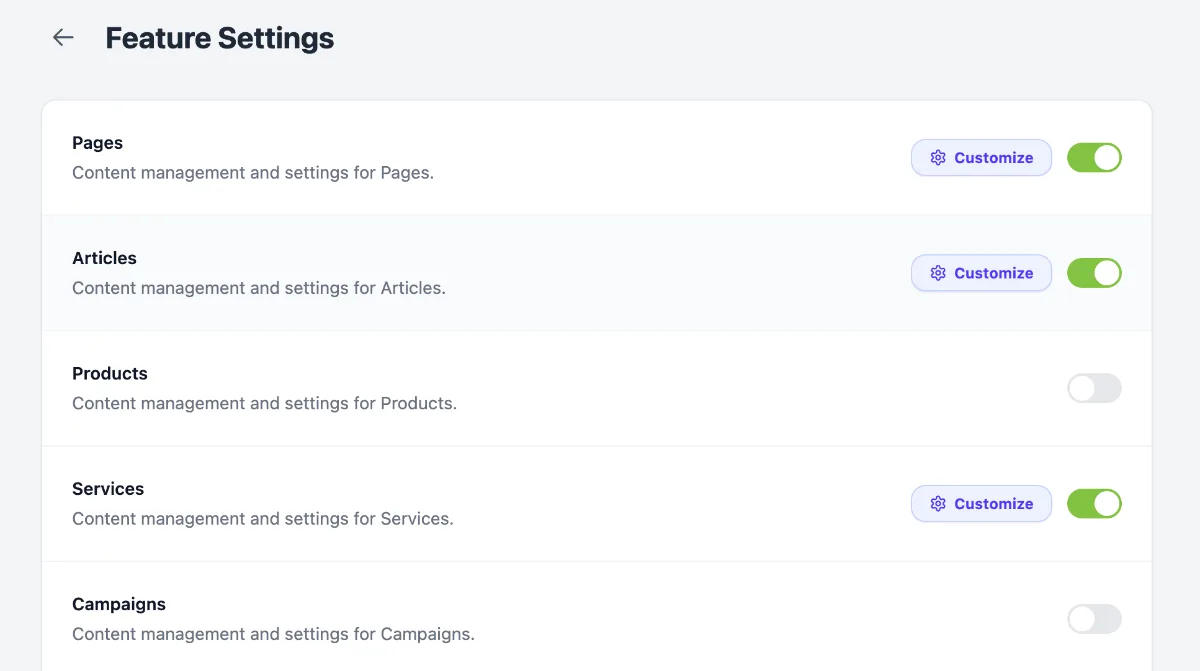
Access the Content List from your selected content type, such as Articles, Products, Services, and others.
2. Click Add New

Add new content by clicking Add New.
3. Select a Layout Style
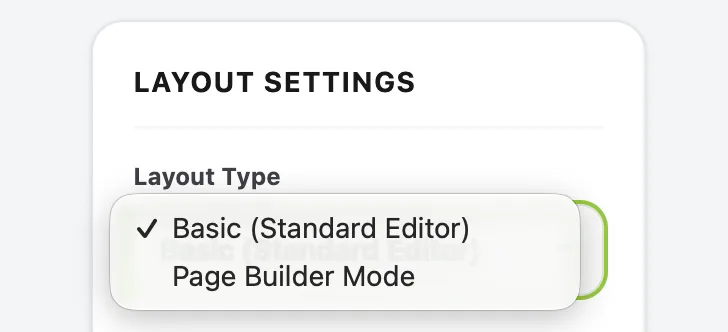
There are two available layout types: Basic and Page Builder. To create a more varied and dynamic layout, you can use Page Builder.
4. Basic Version (Standard Editor)
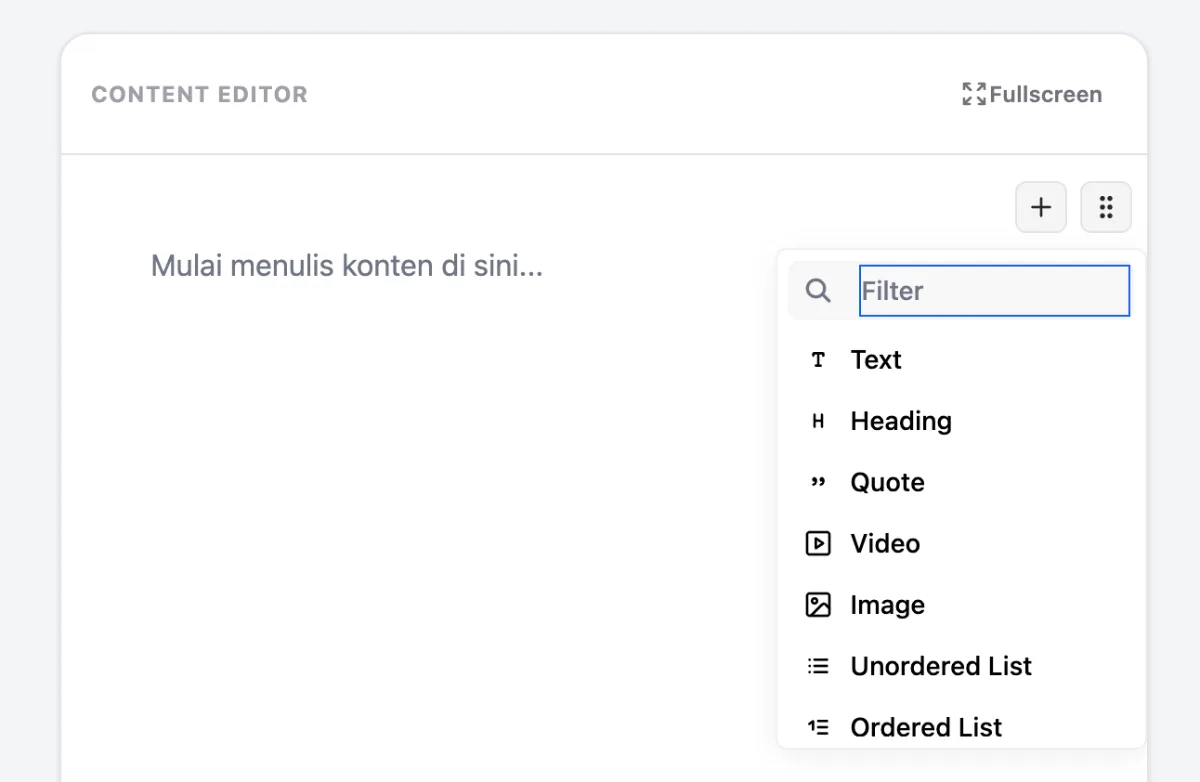
Select Basic (Standard Editor) under Layout Type, then edit your content directly in the Content Editor. Several elements are available, including:
- Text
- Heading
- Quote
- Video
- Image
- Unordered List
- Ordered List
- Checklist
- Table
- Delimiter
5. Page Builder Mode
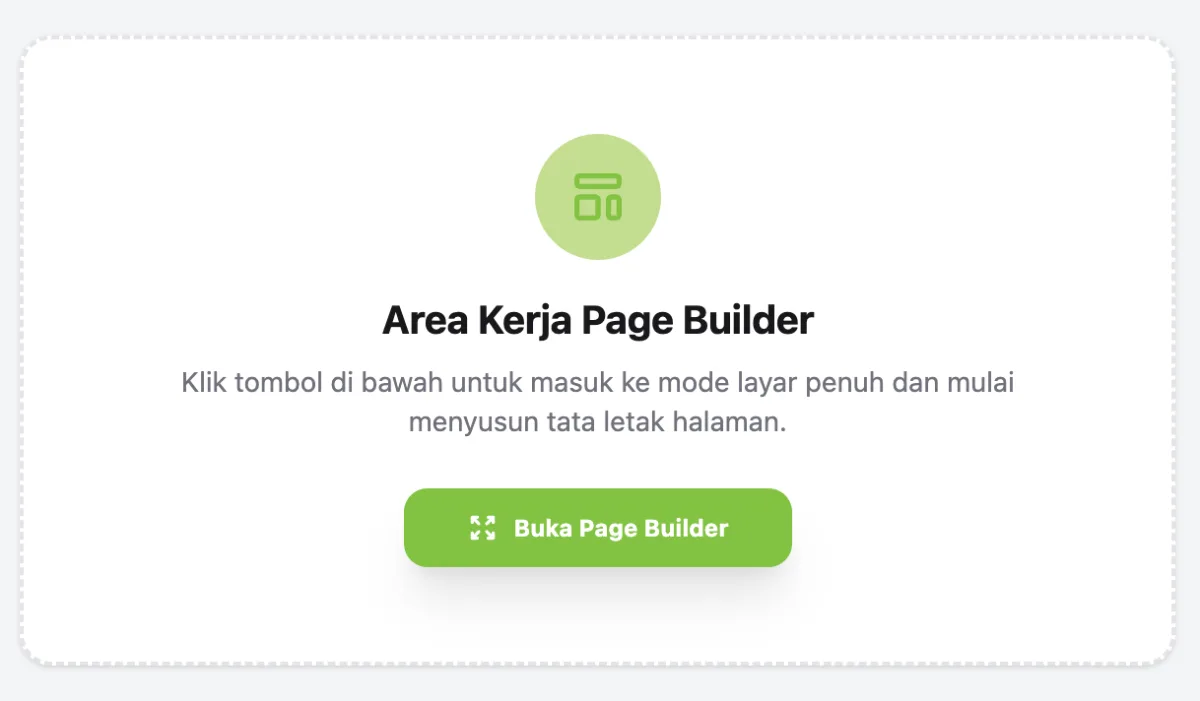
Select Basic (Page Builder Mode) under Layout Type. Then, scroll up slightly and click Open Page Builder.
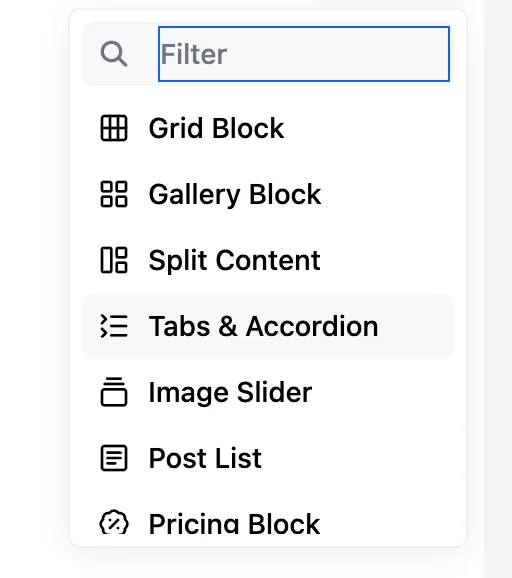
Several elements are available, including:
- Grid Block – Organises content into rows and columns.
- Gallery Block – Displays a collection of images in a gallery.
- Split Content – Divides content into two sections, such as an image and text.
- Tabs & Accordion – Organises information into tabs or collapsible panels.
- Image Slider – Displays images in a slideshow format.
- Post List – Displays a list of articles or posts.
- Pricing Block – Displays pricing and service packages.
- Load Lead Form – Connects a form to collect potential customer information.
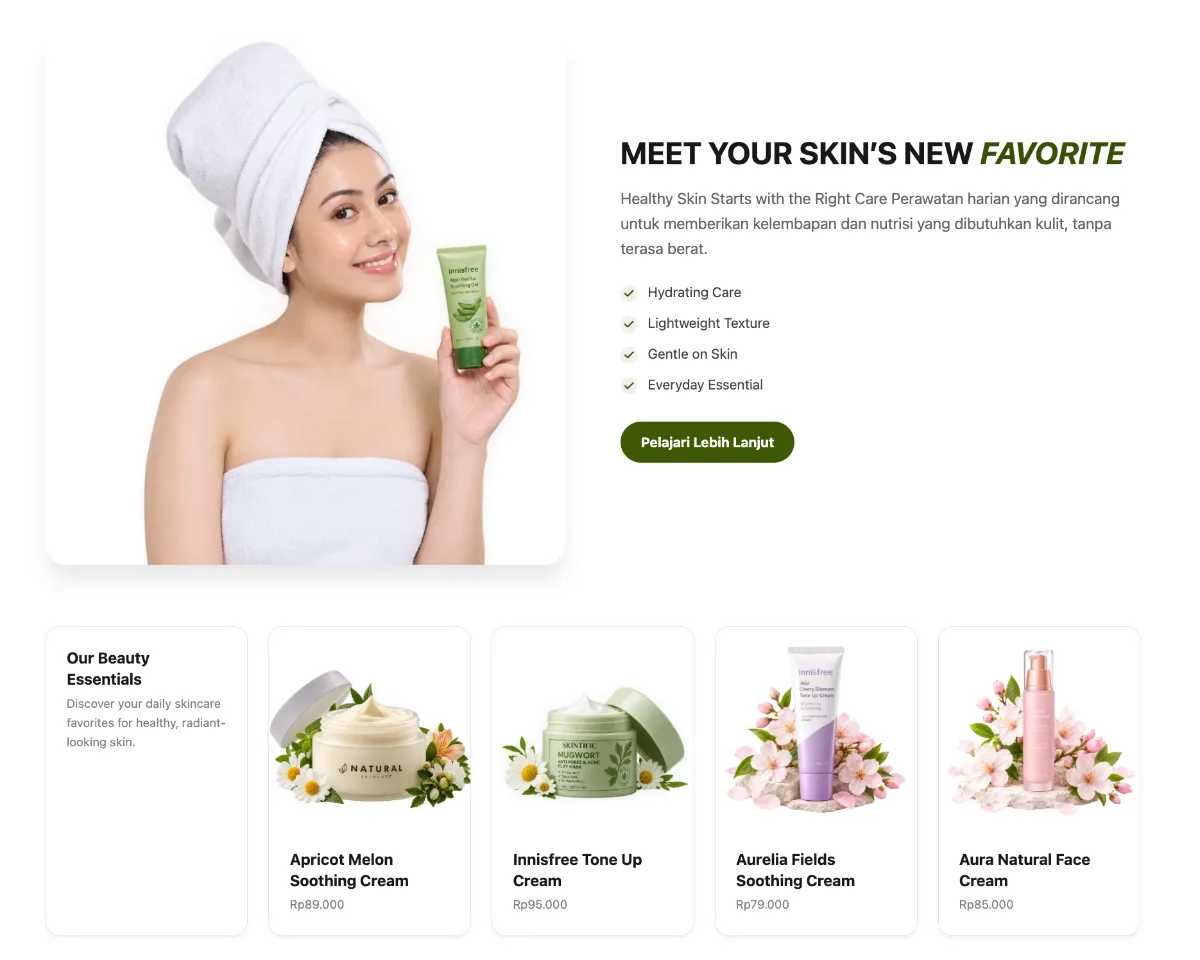
Customise your website layout using the available elements. Each element has its own configuration settings, allowing you to adjust content, dimensions, images and other details to suit your needs.Below is an example of a layout created using Page Builder.
6. Publish Your Content
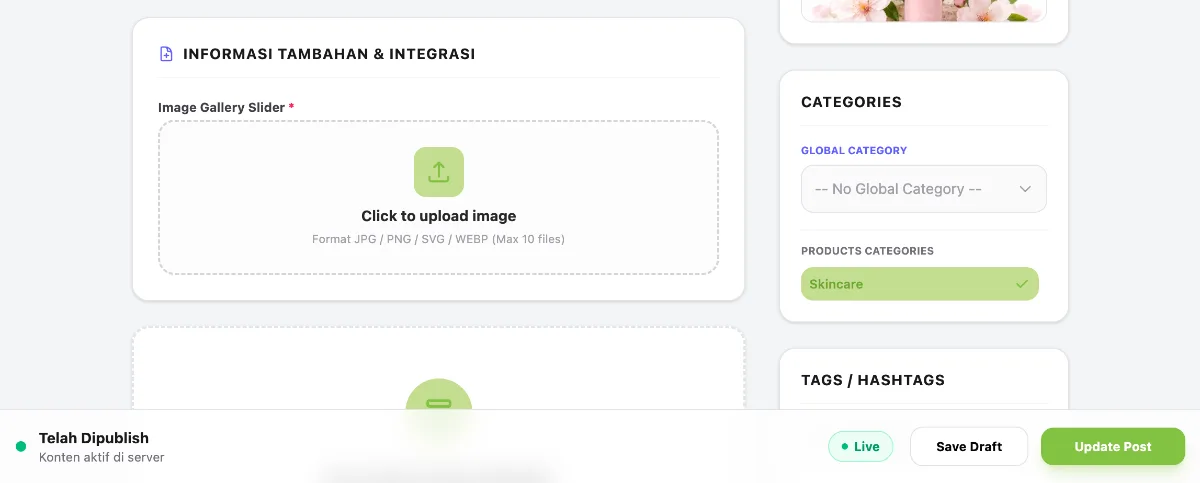
Once you have finished customising the layout, click Update Post.